Real-World Review: Solving Shared Network Issues with the Cudy TR1200 Travel Router
If you’ve ever relied on a shared building network—whether in a rented apartment or a public library—you know the frustration. Streaming dongles, smart TVs, and even laptops under certain security configurations often refuse to cooperate with shared or public infrastructure.
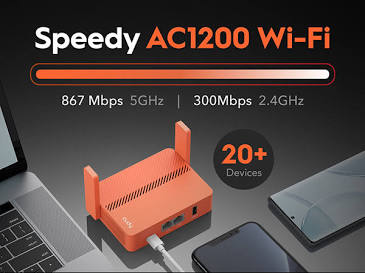
Enter the Cudy TR1200 travel router. I’ve been testing one for a week. Here’s how it holds up.
The Problem
Our rented apartment has a 1000 Mbit/s wired connection. For heavy work, I plug my Lenovo Yoga 900-13ISK directly into the wall jack and everything hums along. But for day-to-day wireless use, things get messy.
The Android TV dongle in our living room flat-out refused to connect reliably across the building’s shared network. The Lenovo laptop (running Windows) had the same problem—connections dropped, devices couldn’t discover each other, nothing worked consistently. Yet when I booted that exact same laptop into Ubuntu, the network was flawless. Same hardware, same apartment, different OS—completely different outcome. At my local library, I saw the same pattern: Windows was dead in the water on the public Wi-Fi; Linux sailed through without a hitch.
The Fix at Home: Your Own Private Subnet
The solution was simple. I plugged the apartment’s Ethernet line into the TR1200’s WAN port:
Shared Building Network
        │  (Ethernet)
        ▼
 Cudy TR1200 WAN ──► Creates private subnet
        │
        ├─► Wi-Fi devices (Android TV, phones, etc.)
        └─► LAN port ──► Wired laptop
The TR1200 pulls internet from the building but isolates everything behind NAT. Every device inside my private network can talk to each other—so the Android TV dongle, phones, and laptop all see each other normally—but from the building network’s perspective, there’s only one device: the router itself.
One important caveat: the TR1200’s WAN and LAN ports are 10/100 Mbps, not gigabit. If you plug a 1000 Mbit/s line into it, your internet speed through the router will cap at roughly 90–95 Mbps in practice. That’s fast enough for streaming, browsing, and most work—but if you’re downloading large files or need the full gigabit, you’ll want to plug directly into the wall and bypass the router.
A Note on Stability
Out of the box, the TR1200 suffered from random reboots every few hours. This wasn’t a bandwidth issue (the WAN port physically limits throughput to 100 Mbps anyway), and it wasn’t overheating. A firmware update to the latest version resolved it completely—the router has been stable now for several days straight. If you buy one, check for updates before relying on it.
It’s Not a Wi-Fi 6 or Wi-Fi 7 Problem
It’s tempting to blame newer standards when older gear won’t connect. But in this case, there’s no Wi-Fi generation mismatch at all:
- The Lenovo Yoga 900-13ISK uses an Intel Wireless-AC 8260—Wi-Fi 5 (802.11ac).
- The Cudy TR1200 is also Wi-Fi 5.
Both devices are on the same standard. The real culprit is how different operating systems handle public network security. Windows and Android ship with stricter default policies for shared networks: they’re cautious about captive portals, MAC filtering, and AP/client isolation (settings that prevent devices on the same public network from seeing each other, which breaks things like casting and file sharing). Linux, out of the box, tends to handle these handshakes more leniently. That’s why Ubuntu worked while Windows and Android didn’t—same hardware, same network, different security posture.
The travel router sidesteps all of this. As far as your devices are concerned, they’re on a normal home network. The TR1200 handles whatever the building network throws at it.
WISP Mode: Wi-Fi to Your Own Private Wi-Fi
At the library, I could technically use an Ethernet port—they have them—but I’d rather not spend my time crawling under desks and haggling with cables. And at plenty of other places I work from—coffee shops, airport lounges, hotel lobbies—Ethernet isn’t an option at all.
That’s where WISP mode comes in. WISP stands for Wireless Internet Service Provider. In this mode, the TR1200 connects to the public Wi-Fi as a client (the same way your phone would), then broadcasts its own private Wi-Fi network for your devices. You authenticate once through the router’s interface—it handles captive portals, too—and everything behind it gets online without ever touching the public network directly. One thing to keep in mind: NAT isolation keeps your devices hidden from other people on the same network, but it doesn’t encrypt the traffic that leaves the router. Anyone with access to the upstream network (the library’s, the coffee shop’s, etc.) can still see your unencrypted traffic. For full protection on public Wi-Fi, you’ll want to pair the TR1200 with its built-in VPN feature. I’ll cover that in a follow-up post.
Setup took under two minutes. I’m writing this from my laptop at the library, connected through the TR1200 right now.
Verdict After One Week
The TR1200 is a compact, capable travel router that solves a specific problem well: getting finicky devices online through shared or public networks, regardless of what OS they’re running. WISP mode paired with captive portal support makes it genuinely useful in the field, and the NAT isolation is a real security improvement over connecting directly.
A few things to know going in:
- Those 10/100 Mbps ports mean you won’t get more than ~95 Mbps of internet throughput, regardless of how fast the upstream connection is.
- Update the firmware immediately—the shipping firmware had stability issues.
- The built-in VPN support (WireGuard, OpenVPN, IPsec, L2TP, PPTP, and ZeroTier) means you can encrypt all your traffic at the router level. I’ll test that in a follow-up post.
For the price, it’s a solid addition to any mobile toolkit.
Disclosure: I bought the Cudy TR1200 with my own money. I have no affiliation with Cudy and was not compensated in any way for this review.